Claude Code for Beginners: Why a GUI Makes All the Difference
You have heard the hype. Claude Code is one of the most powerful AI coding agents available today -- it can plan features, write code across multiple files, run tests, debug production issues, and commit changes to your repository. Developers who use it daily say it has transformed how they build software.
But here is the thing nobody talks about: Claude Code runs entirely in the terminal. For many developers -- especially those just getting started -- that is a dealbreaker.
If you have ever stared at a blinking cursor in a black window and felt uncertain, you are not alone. The terminal was never designed to be welcoming to newcomers. And when you are learning something as transformative as AI-assisted coding, the last thing you need is the interface getting in the way.
That is exactly why SuperBuilder exists. It is a free, open-source desktop app that wraps Claude Code in a visual interface -- giving you all the power with none of the terminal anxiety.
In this guide, we will cover what Claude Code is, why the terminal creates friction, what SuperBuilder adds, and walk you step-by-step through your first AI-powered coding session.
Table of Contents
- What Is Claude Code?
- Why the Terminal Intimidates Beginners
- What SuperBuilder Adds
- CLI vs GUI: A Side-by-Side Comparison
- Getting Started: Your First Session
- Common Beginner Mistakes (and How SuperBuilder Prevents Them)
- Tips for Getting the Most Out of Claude Code
- Frequently Asked Questions
- Next Steps
What Is Claude Code?
Claude Code is an AI coding agent built by Anthropic. Unlike simple code completion tools that suggest the next line as you type, Claude Code is an autonomous agent -- you describe what you want in plain English, and it figures out how to do it.
Here is what makes it different from other AI coding tools:
- It reads your entire codebase. Claude Code understands your project structure, patterns, and dependencies -- not just the file you have open.
- It executes commands. Install packages, run tests, check builds -- Claude Code handles it directly.
- It edits multiple files. A single prompt like "add a login page with form validation" can produce coordinated changes across routes, components, styles, and tests.
- It reasons through problems. Rather than pattern-matching, Claude Code plans an approach, implements it, verifies it works, and iterates if something breaks.
As of early 2026, Claude Code leads the SWE-bench benchmark at over 80% accuracy on real-world GitHub issues. It is a genuine productivity multiplier.
But all of this power ships as a command-line interface (CLI). You install it globally with npm, open a terminal, type claude, and start typing prompts into a text stream. For experienced developers, this feels natural. For everyone else, it feels like being handed the controls of a spaceship without a manual.
Why the Terminal Intimidates Beginners
Let us be honest about what happens when a beginner tries to use Claude Code for the first time.
The Setup Gauntlet
Before you can even send your first prompt, you need to install Node.js, run npm install -g @anthropic-ai/claude-code, navigate to your project with cd, and set up authentication. Each step is a potential dead end -- a wrong Node version, a permissions error, a missing PATH entry. Any one of these can stop a beginner cold.
The Invisible State Problem
Once Claude Code is running, you cannot see what is happening. The terminal is a single stream of text. There is no sidebar showing conversation history. No visual indicator of session cost. No way to glance at your project structure while chatting with the AI. Everything exists in a single scrolling river of text.
The "Did It Work?" Anxiety
When Claude Code finishes editing your files, beginners often find themselves asking: Which files changed? Did it break anything? How much did that cost? Can I undo it? These questions have answers in the CLI, but finding them requires knowledge of git, terminal scrollback, and Claude Code's output format -- a lot of prerequisite knowledge for someone who just wants to build something.

What SuperBuilder Adds
SuperBuilder is a free, open-source desktop application for macOS that gives Claude Code a proper graphical interface. It runs Claude Code under the hood -- you get the exact same AI capabilities -- but the experience is completely different.
Here is what changes when you use SuperBuilder instead of the raw CLI:
Visual Thread Management
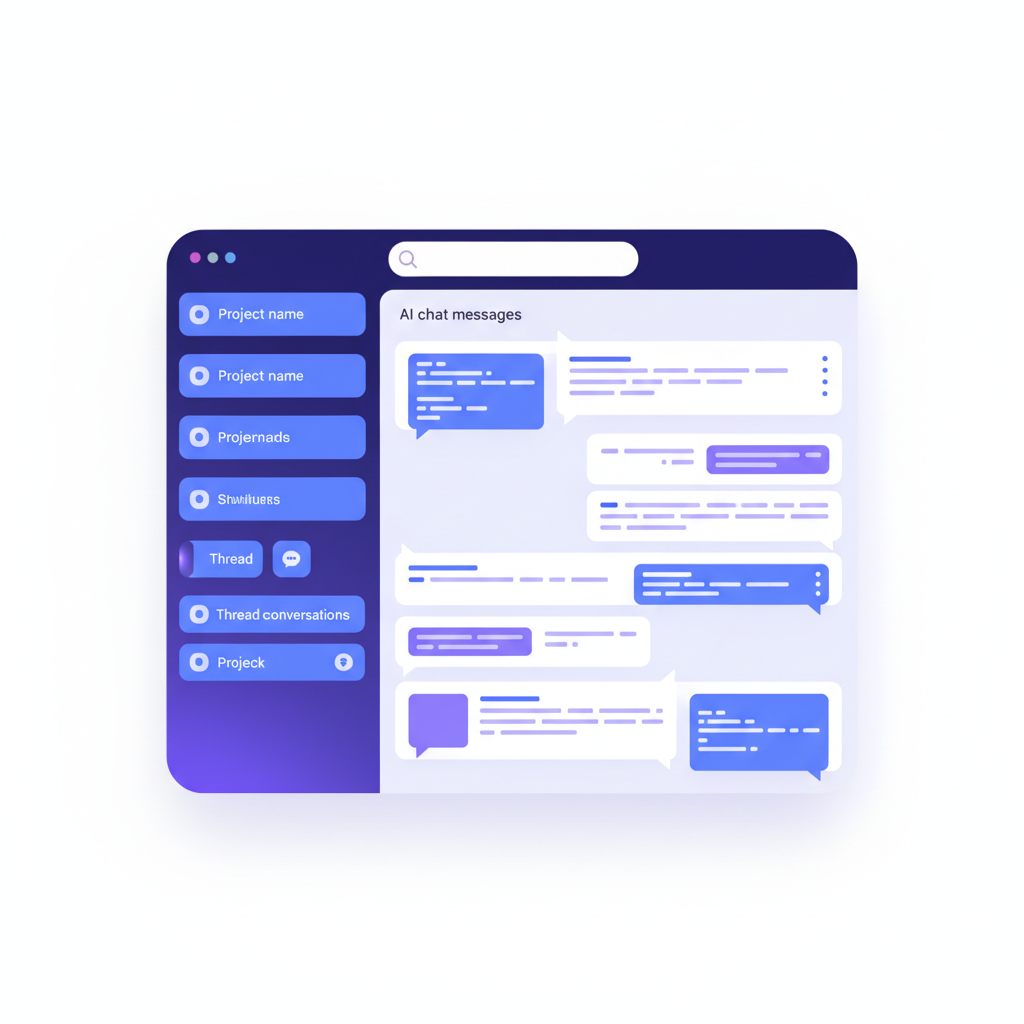
Every conversation with Claude Code becomes a thread with a title, a timestamp, and full history. You can have multiple threads per project, switch between them instantly, and pick up where you left off days later.
In the terminal, closing your window means losing your conversation context. In SuperBuilder, your threads are persistent and searchable.
Real-Time Cost Visibility
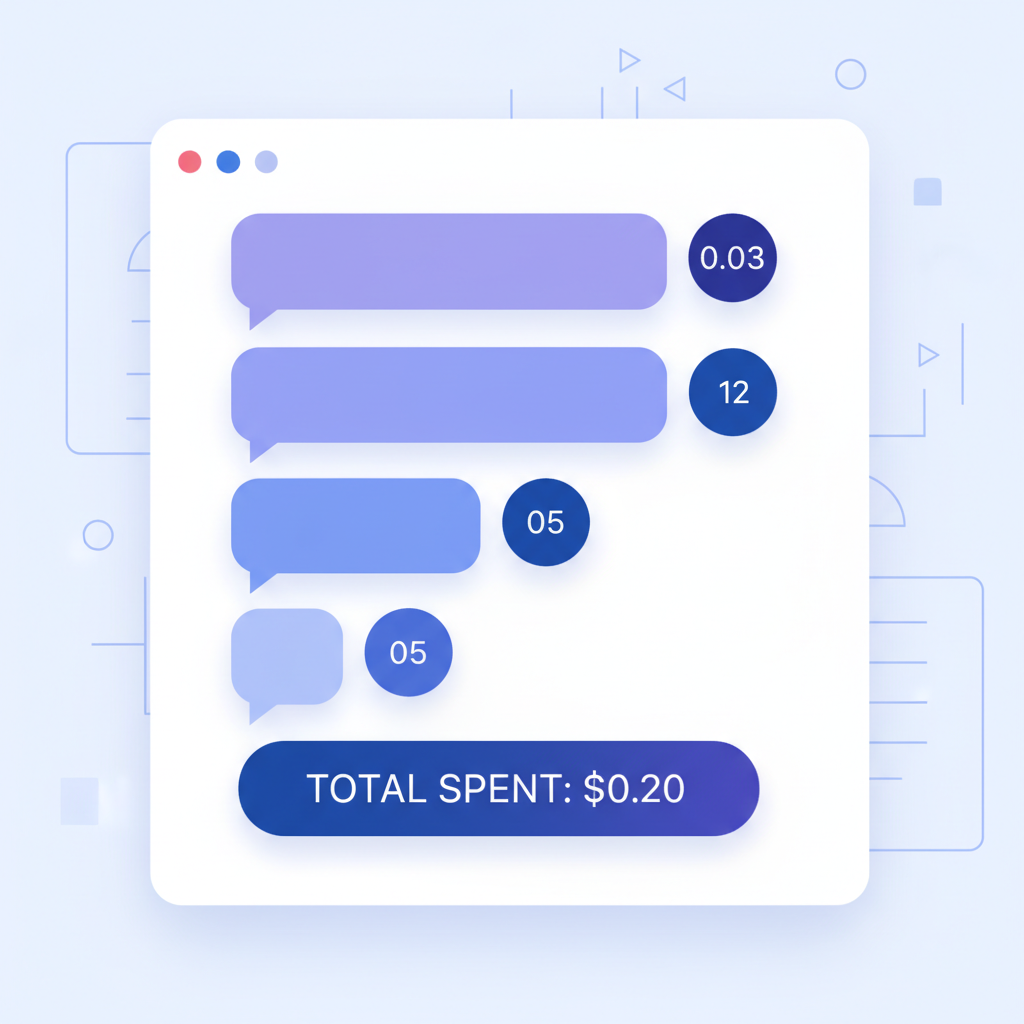
One of the biggest anxieties for beginners is cost. Claude Code uses API tokens, and complex prompts can get expensive. SuperBuilder shows you the cost of every message in real time -- no surprises, no mental math.
There is even a configurable alert threshold (default: $0.10 per call) that warns you before an expensive operation runs. You stay in control of your spending without needing to manually track API usage.
One-Click Project Setup
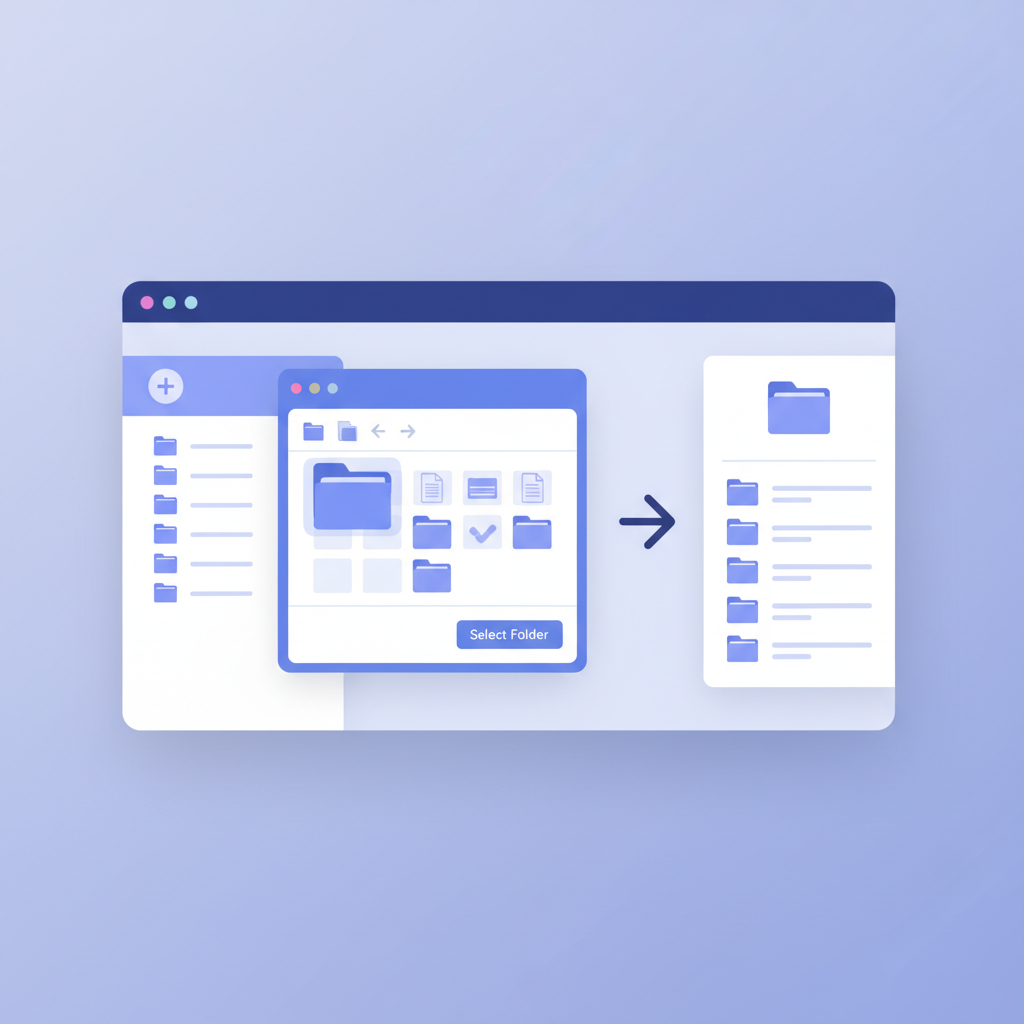
Instead of navigating directories in the terminal, SuperBuilder lets you add projects through a visual file picker. Click "Add Project," select your folder, and you are ready to go. No cd, no path memorization, no typos.
Your projects appear in a sidebar, and switching between them is a single click. Each project maintains its own threads, settings, and conversation history.
Built-In Execution Modes
SuperBuilder adds execution modes that shape how Claude Code approaches your prompt:
- Normal: Standard behavior -- Claude reads, plans, and executes.
- Plan: Claude creates a detailed plan but does not make changes. Perfect for understanding what will happen before it happens.
- Debug: Optimized for finding and fixing bugs, with structured hypothesis tracking.
- Verify: Claude reviews existing code for issues without making changes.
- Ask: Pure Q&A mode -- ask questions about your codebase without any file modifications.
For beginners, Plan mode is a game-changer. You can describe what you want, see exactly what Claude intends to do, and only then decide whether to proceed. It removes the fear of "what if it breaks everything?"
File Management with Drive
SuperBuilder includes a Drive feature -- a visual file manager that shows your project assets, screenshots, and generated files in a grid view. You can reference files directly in your prompts using @ mentions, and browse project files with Cmd+P.
CLI vs GUI: A Side-by-Side Comparison
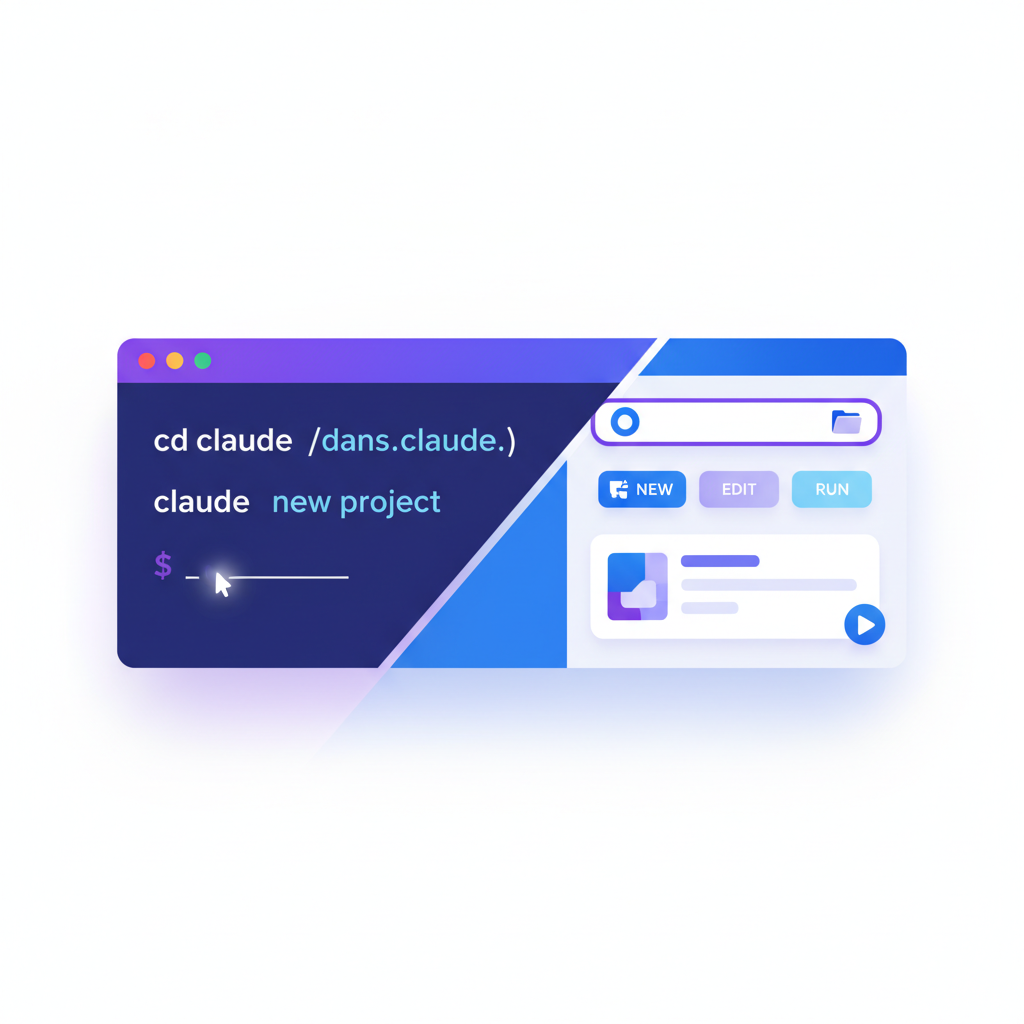
To make the difference concrete, let us walk through a common task -- asking Claude Code to add a dark mode toggle to a React app -- in both the terminal and SuperBuilder.
Using the Raw CLI
Pain points: No cost visibility, no visual diff, no way to undo easily, lost conversation history when you close the terminal.
Using SuperBuilder
- Open SuperBuilder. Your project is already in the sidebar.
- Click the project. Start a new thread (or continue an existing one).
- Type your prompt in the composer. Optionally select Plan mode first to preview the approach.
- Hit Enter. Watch Claude Code work -- with real-time cost displayed next to each message.
- Review the changes in the conversation view, which shows exactly which files were modified.
- If something looks wrong, send a follow-up message: "Actually, use a toggle switch instead of a button."
No terminal. No cd. No wondering what happened. Everything is visible, persistent, and reversible.
Getting Started: Your First Session
Ready to try it? Here is a complete walkthrough from zero to your first AI-generated code change.
Step 1: Download SuperBuilder
Head to superbuilder.sh/download and grab the latest release for macOS. SuperBuilder supports both Apple Silicon and Intel Macs.
The download is a standard .dmg file. Open it, drag SuperBuilder to your Applications folder, and launch it.
Note: SuperBuilder is completely free and open source. You can also build it from source via the GitHub repository.
Step 2: Connect Your Anthropic Account
On first launch, SuperBuilder will guide you through authentication. You can enter an Anthropic API key directly, or authenticate through a Claude Pro/Max subscription that includes Claude Code access. Credentials are stored securely on your local machine.
Step 3: Add Your First Project
Click the "+" button in the sidebar to add a project. A file picker will open -- navigate to any folder that contains code you want to work on.
Your project appears in the sidebar immediately. SuperBuilder automatically indexes the file structure so Claude Code can understand your codebase.
Step 4: Create a Thread and Send Your First Prompt
Click your project in the sidebar, then start a new thread. You will see a clean conversation view with a prompt composer at the bottom.
Try something simple for your first prompt:
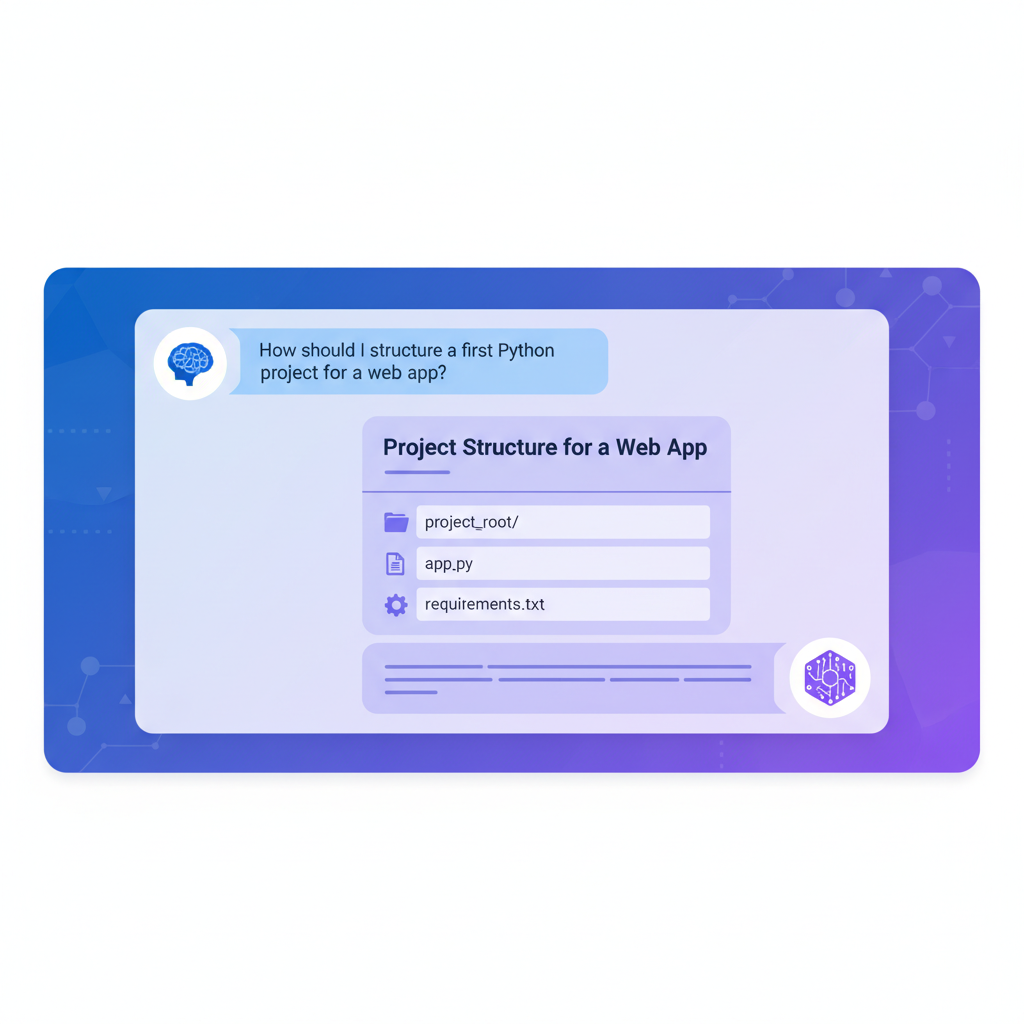
"Explain the structure of this project. What are the main files and what does each one do?"
This is a safe first prompt -- it uses read-only operations. Claude Code will scan your project and give you a summary without changing anything. It is a great way to see the AI in action before letting it make edits.
Step 5: Try an Edit with Plan Mode
Now let us try something more hands-on. Switch the execution mode to Plan using the mode dropdown, then type:
"Add a footer component that shows the current year and a link to the project repository."
In Plan mode, Claude Code will describe exactly what it intends to do -- which files it will create or modify, what the code will look like, and why it made those choices. You can review the plan and either approve it (by switching to Normal mode and saying "go ahead") or ask for adjustments.
Step 6: Review and Iterate
Once Claude Code makes changes, review them in the conversation view. Each message shows what was modified. If something is not quite right, just tell it:
"Move the footer link to the left side and make the text smaller."
Claude Code remembers the full context of your conversation. You do not need to re-explain what you are working on -- just describe the adjustment.
Common Beginner Mistakes (and How SuperBuilder Prevents Them)
After watching hundreds of developers try Claude Code for the first time, we have noticed the same mistakes come up again and again. Here is how SuperBuilder's design helps you avoid them.
Mistake 1: Prompts That Are Too Vague
The problem: Beginners often type something like "make the app better" or "fix the bugs." Claude Code is powerful, but it needs specific direction. Vague prompts lead to unexpected changes across your codebase.
How SuperBuilder helps: Plan mode lets you preview what Claude Code intends to do before it does anything. If a vague prompt leads to a surprising plan, you can refine your request before any code changes happen. This feedback loop teaches you to write better prompts naturally.
Mistake 2: Losing Track of Costs
The problem: A single complex prompt can use thousands of tokens, especially if Claude Code reads many files to understand context. Beginners who are not watching costs can rack up unexpected charges.
How SuperBuilder helps: Every message displays its cost. The large-call alert system warns you when an operation is about to cross your configured threshold. You always know exactly what you are spending.
Mistake 3: Not Using Git Before Making Changes
The problem: Claude Code edits files directly. If you do not have a clean git state before making changes, you have no easy way to undo what the AI did.
How SuperBuilder helps: SuperBuilder integrates with your project's git repository. You can see the state of your project and use the built-in terminal pane to run git commands when needed. The visual thread history also gives you a record of every change Claude Code made, so you can trace back through your session.
Mistake 4: Running Multiple Sessions on the Same Project
The problem: In the terminal, it is easy to accidentally open two Claude Code sessions pointing at the same project. They will step on each other's changes, leading to conflicts and confusion.
How SuperBuilder helps: SuperBuilder manages one active Claude Code session per project. You cannot accidentally create conflicting sessions. Your threads are organized per project, and only one can be actively running at a time.
Mistake 5: Ignoring Context Limits
The problem: Claude Code has a context window. Long sessions cause earlier context to drop out, and Claude starts "forgetting" what you discussed.
How SuperBuilder helps: The visual thread interface makes conversation length obvious. Starting a new thread is a single click, naturally encouraging focused conversations.
Mistake 6: Not Reviewing Changes Before Continuing
The problem: Beginners often accept AI changes blindly and build on top of potentially flawed code.
How SuperBuilder helps: The conversation view presents changes clearly. Plan mode creates an explicit review step. Verify and Debug modes let you audit code without making additional changes.
Tips for Getting the Most Out of Claude Code
Whether you use the CLI or SuperBuilder, these tips will help you work more effectively with Claude Code.
Be Specific in Your Prompts
Instead of "add authentication," try "add email/password authentication using NextAuth.js with a PostgreSQL database, including a login page, signup page, and protected route middleware."
The more context you give, the better the result. Mention specific libraries, frameworks, design patterns, or files you want involved.
Start with Plan Mode
Especially when you are learning, always start in Plan mode. Read the plan, understand the approach, then execute. This builds your intuition for what good AI-assisted development looks like.
Use Small, Iterative Prompts
Instead of one massive prompt, break features into steps: first the database schema, then the API route, then the UI component. Each step gives you a chance to review and adjust before moving on.
Reference Files with @ Mentions
In SuperBuilder, type @ in the prompt composer to reference specific files or variables. This helps Claude Code focus on exactly the files you care about, reducing unnecessary context and improving accuracy.
Keep Threads Focused
One thread per task. Done adding a feature and want to fix a bug? Start a new thread. Fresh context leads to better results.
Frequently Asked Questions
Is SuperBuilder free?
Yes. SuperBuilder is completely free and open source. You still need your own Anthropic API access (either an API key or a Claude Pro/Max subscription that includes Claude Code), but SuperBuilder itself costs nothing.
Does SuperBuilder work on Windows or Linux?
SuperBuilder currently supports macOS (both Apple Silicon and Intel). Windows and Linux support is on the roadmap.
Is SuperBuilder just a terminal wrapper?
It is more than that. While SuperBuilder does run Claude Code's CLI under the hood, it adds persistent thread management, cost tracking, execution modes, file indexing, project organization, a Drive file manager, and a skills system that extends Claude Code's capabilities. The CLI is the engine; SuperBuilder is the car.
Can I still use the terminal inside SuperBuilder?
Yes. SuperBuilder includes a built-in terminal pane that you can open alongside your conversation. You get the best of both worlds -- a visual interface for AI interactions and a terminal for when you need it.
Will my Claude Code sessions in SuperBuilder differ from the CLI?
No. SuperBuilder runs the same Claude Code binary. The AI responses, capabilities, and quality are identical. The difference is entirely in the interface and workflow tools around it. Everything stays on your machine -- SuperBuilder stores threads, settings, and project data in a local SQLite database and does not collect or transmit any data beyond what goes to Anthropic's API.
Next Steps
You now have everything you need to start using Claude Code effectively -- without the terminal holding you back.
Here is what to do next:
- Download SuperBuilder -- it takes less than a minute to install.
- Add your first project and send an exploratory prompt in Ask mode to understand your codebase.
- Try Plan mode on a small change to see how Claude Code thinks through a problem.
- Join the community -- share your experience, ask questions, and help shape SuperBuilder's development.
You do not need to be a terminal expert to take advantage of AI coding tools. You just need a good interface.
Get SuperBuilder free at superbuilder.sh
SuperBuilder is open source and community-driven. Star the GitHub repo or share it with a friend who is getting started with AI-assisted coding.