Claude Code Permission Errors: Complete Fix Guide (2026)
Claude Code is one of the most powerful AI coding assistants available in 2026, but permission errors remain the single biggest source of frustration for developers using it daily. Whether you are hitting file system access denials, getting stuck in endless tool approval loops, or running into cryptic API key failures, this guide walks you through every common permission error with exact error messages, root causes, and proven fixes.

Table of Contents
- File System Access Denied
- Sudo and Elevated Permission Prompts
- Directory Permission Mismatches
- API Key and Authentication Errors
- Rate Limit and Quota Errors
- Tool Approval Fatigue
- Node Modules and Package Manager Permissions
- Git and SSH Permission Failures
- How SuperBuilder Handles Permissions
- Safe Permission Management Tips
1. File System Access Denied
Error message:
or
Cause: Claude Code operates within a sandboxed environment and requires explicit approval to read or modify files outside its allowed directories. This commonly occurs when you point Claude Code at a project directory owned by a different user, or when files have restrictive permissions set (e.g., chmod 600).
Fix steps:
- Check the file permissions:
- If the file is owned by another user, either change ownership or add your user to the file's group:
- If you are working inside a Docker container or VM, make sure the mounted volume has the correct permissions. A common mistake is mounting with
ro(read-only) when Claude Code needs write access:
- When Claude Code prompts you to approve file access, review the path carefully and approve it. If you are tired of approving every single file operation, see the section on Tool Approval Fatigue below.
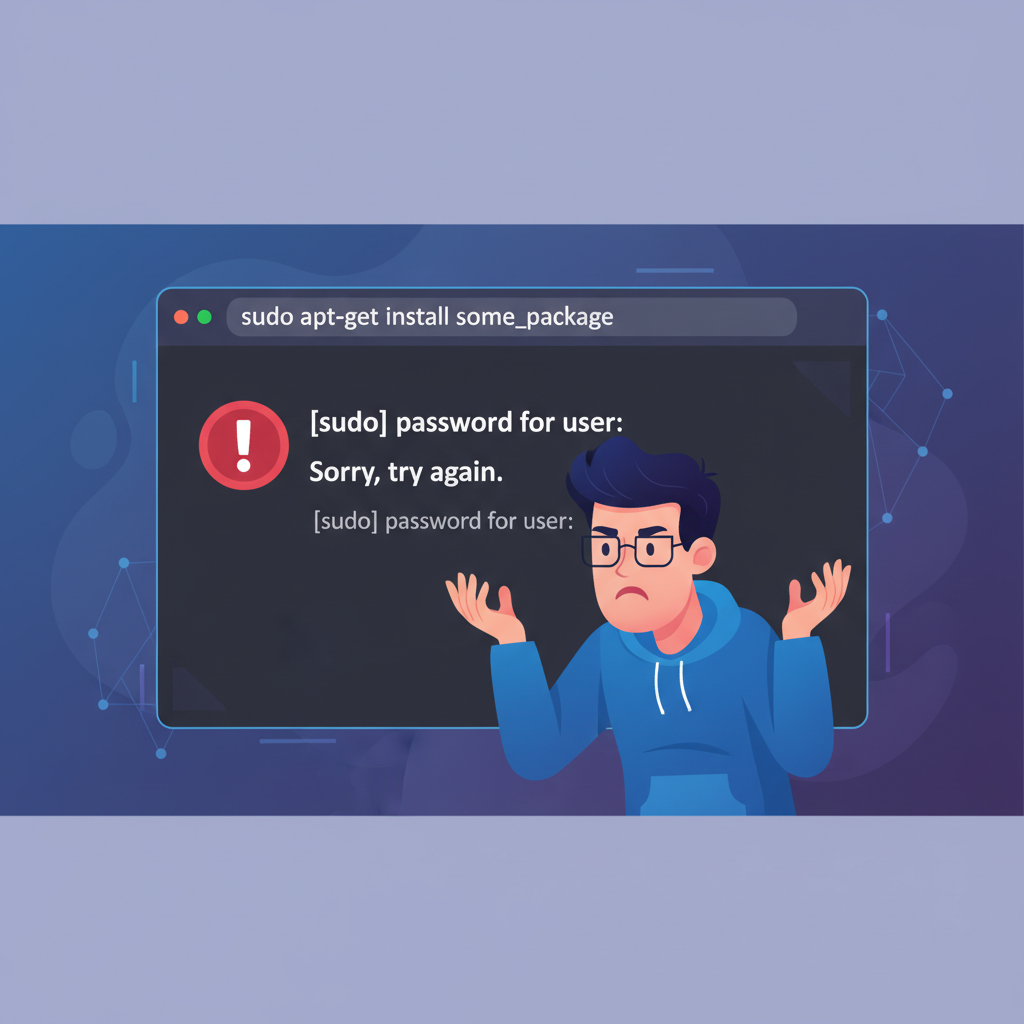
2. Sudo and Elevated Permission Prompts
Error message:
or
Cause: Claude Code attempts to run a command that modifies system-level directories (like /usr/local, /etc, or /opt). This happens most often during global package installs, system config changes, or when your project accidentally references absolute system paths.
Fix steps:
-
Never run Claude Code itself with
sudo. This creates files owned by root inside your project, which causes cascading permission errors later. -
For global npm installs, configure npm to use a user-level directory:
- If you already have root-owned files in your project from a previous
sudomistake, fix them:
- For operations that genuinely need elevated access (editing
/etc/hosts, binding to port 80), run those commands manually in a separate terminal rather than through Claude Code.
3. Directory Permission Mismatches
Error message:
or
Cause: The project directory or one of its parent directories lacks execute (x) permission for your user. On Unix systems, you need execute permission on a directory to list its contents, even if the files inside are readable. This also occurs when a symlink points to a directory you do not have access to.
Fix steps:
- Check permissions on the directory and all parent directories:
This shows the permission chain from root to your target directory. Look for any directory missing the x flag for your user.
- Fix the specific directory:
- If you are working with symlinks, verify the target exists and is accessible:
- On macOS, check System Settings > Privacy & Security > Files and Folders. Your terminal app (Terminal, iTerm2, or your IDE's integrated terminal) may need explicit permission to access Desktop, Documents, or Downloads folders. Claude Code inherits the permissions of its parent terminal process.
4. API Key and Authentication Errors
Error message:
or
or
Cause: Claude Code requires a valid Anthropic API key to function. These errors appear when the key is missing, expired, incorrectly formatted, or when there is a mismatch between the key and the API endpoint (e.g., using a production key against a staging endpoint).
Fix steps:
- Verify your API key is set:
If it is empty, set it in your shell profile:
-
Check the key format. Valid Anthropic API keys start with
sk-ant-. If yours looks different, you may have an outdated key from a previous API version. -
Test the key directly:
If you get a valid JSON response, the key works. If you get a 401, regenerate the key from the Anthropic Console.
- If you are behind a corporate proxy or VPN, the API call may be blocked. Check with your network admin or try:
- For team setups where the key is managed via a secrets manager, make sure the key is available in the shell session where Claude Code runs, not just in your CI pipeline.
5. Rate Limit and Quota Errors
Error message:
or
or
Cause: Anthropic enforces rate limits per API key based on your plan tier. Claude Code can burn through tokens quickly during complex tasks, especially when it reads large files, performs multi-step refactors, or runs in a loop retrying failed operations. Each tool call (file read, bash command, etc.) counts toward your token usage.
Fix steps:
-
Check your current usage at console.anthropic.com. Look at both per-minute and monthly quotas.
-
If you are hitting per-minute limits, the simplest fix is to wait and retry. Claude Code usually handles this automatically with exponential backoff, but if it does not:
-
Reduce token consumption by being specific in your prompts. Instead of "refactor this entire codebase," target specific files or functions. This reduces the number of file reads and tool calls Claude Code needs to make.
-
If you consistently hit limits, upgrade your plan tier or request a rate limit increase through the Anthropic Console.
-
For teams, use separate API keys per developer to avoid one person's heavy usage blocking the entire team.
6. Tool Approval Fatigue
Error message:
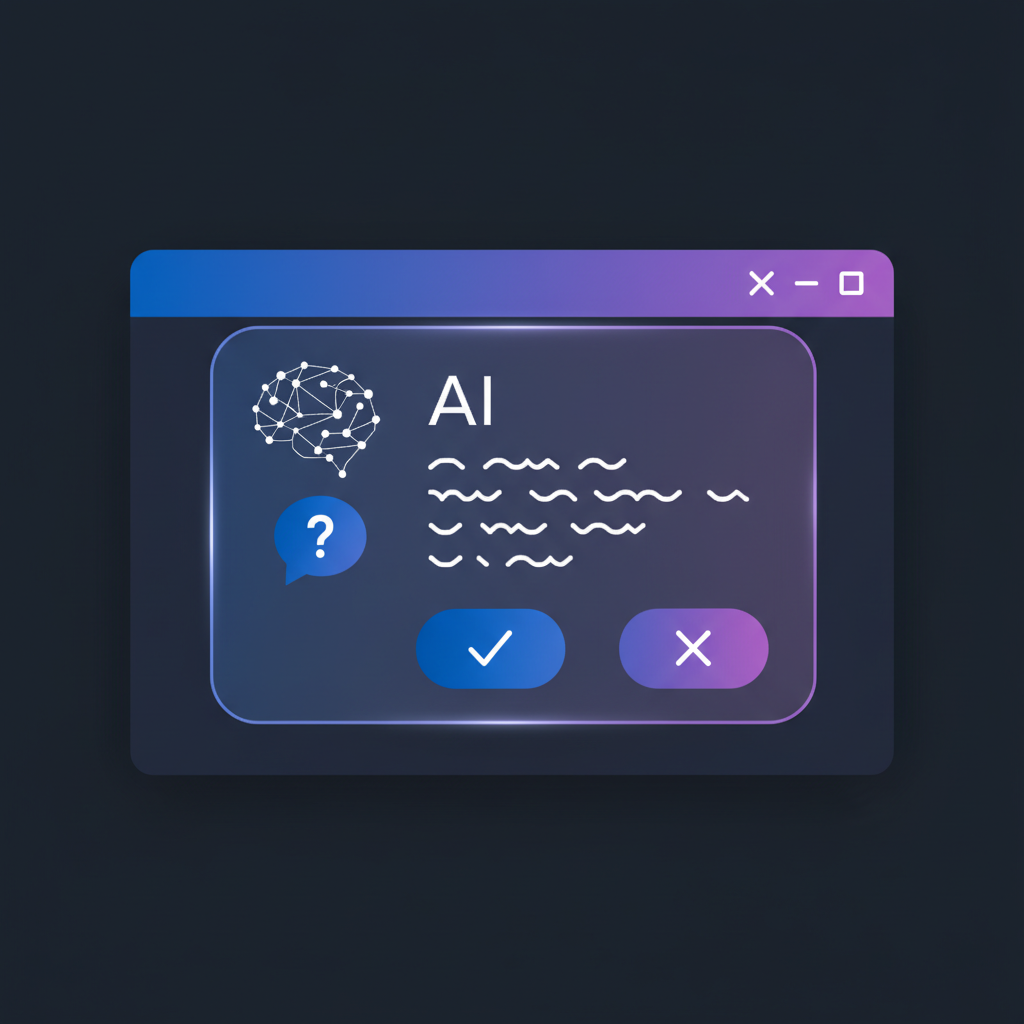
This is not a traditional error, but rather the constant stream of approval prompts:
Cause: By default, Claude Code asks for permission before every potentially destructive action: running shell commands, editing files, deleting files, and making network requests. This is a safety feature, but during active development sessions it becomes a bottleneck. Developers report spending more time approving actions than reviewing the actual code changes.
Fix steps:
- Use the
--dangerously-skip-permissionsflag to bypass all approval prompts. This is the nuclear option, appropriate for local development on non-sensitive projects:
Be aware: this flag allows Claude Code to execute any command, modify any file, and make any network request without asking. Only use this in sandboxed or disposable environments.
- Configure an allowlist for specific tools. Create or edit
~/.claude/settings.json:
This lets you auto-approve safe operations while still requiring confirmation for dangerous ones.
-
Use the "always allow" option when prompted. When Claude Code asks for approval, responding with "always" remembers that decision for the current session.
-
Consider a GUI wrapper like SuperBuilder that provides a visual approval flow with one-click accept/reject, making the approval process much faster than typing y/n in a terminal. More details in the SuperBuilder section below.
7. Node Modules and Package Manager Permissions
Error message:
or
Cause: This occurs when node_modules was partially created by a different user (often root from a sudo npm install), when a previous install was interrupted, or when the package lock file has been corrupted. Claude Code runs npm/yarn/pnpm commands as your user, so any root-owned files in node_modules cause cascading failures.
Fix steps:
- Reset ownership of node_modules:
- If the error persists, do a clean install:
- For pnpm users, check your store permissions:
- Prevent the issue from recurring by never using
sudowith your package manager. If you find yourself needing sudo for installs, your npm prefix is misconfigured (see section 2).
8. Git and SSH Permission Failures
Error message:
or
Cause: When Claude Code runs git push, git pull, or git clone on your behalf, it uses your shell's SSH or HTTPS credentials. If your SSH key is not loaded, the agent is not configured, or the key does not have access to the target repository, the operation fails.
Fix steps:
- Check your SSH agent:
If it says "The agent has no identities," add your key:
- Test your SSH connection:
You should see "Hi username! You've successfully authenticated."
- For HTTPS authentication, make sure your credential helper is configured:
On macOS, use osxkeychain. On Linux, use store or cache.
-
If you are using fine-grained personal access tokens (PATs), make sure the token has
Contents: Read and writeandMetadata: Readpermissions for the target repository. -
For organizations with SSO, you must authorize your SSH key or PAT for the organization. Visit GitHub > Settings > SSH keys and click "Configure SSO" next to your key.
9. How SuperBuilder Handles Permissions
SuperBuilder is a desktop application for macOS that wraps Claude Code with a visual interface. It takes a different approach to the permission problem that eliminates most of the friction described above.
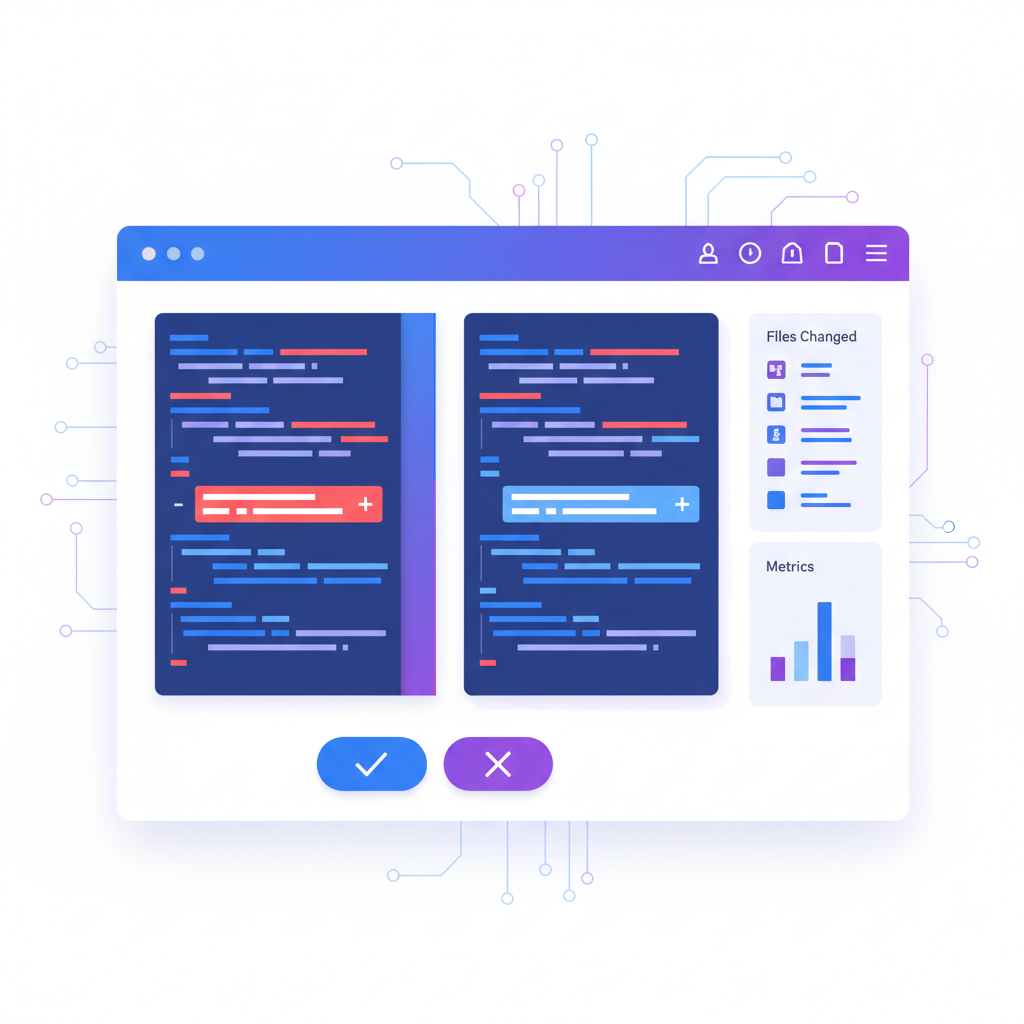
The --dangerously-skip-permissions flag, managed safely. SuperBuilder spawns Claude Code with the --dangerously-skip-permissions flag internally, but wraps it with its own visual safety layer. Instead of the binary y/n terminal prompts, you get a rich UI showing exactly what Claude Code wants to do, with syntax-highlighted diffs for file edits and full command previews for shell operations.
Visual approval flow. Every tool call appears in a clear, readable card. File edits show a before/after diff. Bash commands show the exact command with arguments. You can approve or reject with a single click, or batch-approve multiple safe operations at once. This turns the approval bottleneck into a quick visual scan.
Automatic API key management. SuperBuilder handles API key configuration through its settings panel. You enter your key once and it is securely stored and injected into every Claude Code session. No environment variable juggling, no shell profile editing.
Project-scoped permissions. Each project in SuperBuilder runs in its own isolated context. Claude Code can only access files within the active project directory, reducing the risk surface compared to running with global skip-permissions in a terminal.
Cost awareness built in. SuperBuilder tracks token usage per session and shows a running cost estimate. When a single tool call exceeds $0.10, it displays a warning card so you can decide whether to proceed. This prevents the runaway API costs that sometimes accompany permission-skip mode.
If you are spending more time managing Claude Code permissions than writing code, download SuperBuilder and try the visual workflow.
10. Safe Permission Management Tips
Regardless of whether you use Claude Code directly in the terminal or through a tool like SuperBuilder, these practices will keep your projects secure while minimizing permission friction.
Use project-level directories only
Always run Claude Code from your project root. Avoid pointing it at /, your home directory, or system paths. The narrower the working directory, the less damage a misapproved command can cause.
Audit your .claude.json regularly
Claude Code stores configuration in ~/.claude.json, including MCP server connections and permission overrides. Review this file periodically:
Look for any MCP servers or permission entries you do not recognize.
Use version control as your safety net
Before starting a long Claude Code session, make sure your working tree is clean:
After the session, review all changes before committing:
If Claude Code made unwanted changes, you can always revert:
Set up file watchers for critical files
For files you never want Claude Code to modify (.env, credentials.json, production configs), make them read-only:
Claude Code will fail to write to these files even with skip-permissions enabled.
Rotate API keys periodically
If you use --dangerously-skip-permissions regularly, rotate your Anthropic API key monthly. If the key leaks through a compromised command execution, the blast radius is limited.
Use separate keys for development and CI
Never use the same API key for local development and CI/CD pipelines. Create dedicated keys for each context so you can revoke one without affecting the other.

Quick Reference: Error to Fix Lookup
| Error | Section | Quick Fix |
|---|---|---|
EACCES: permission denied, open | 1 | chown the file to your user |
requires elevated permissions | 2 | Never sudo Claude Code; fix npm prefix |
EACCES: scandir | 3 | chmod 755 on directory chain |
Invalid API key | 4 | Check ANTHROPIC_API_KEY env var |
429 Rate limit exceeded | 5 | Wait or upgrade plan tier |
| Constant approval prompts | 6 | Use allowlists or SuperBuilder |
EACCES: node_modules | 7 | chown -R and clean install |
Permission denied (publickey) | 8 | ssh-add your key |
Conclusion
Permission errors in Claude Code are almost always solvable with the right diagnosis. The most common root causes boil down to three things: file ownership mismatches from accidental sudo usage, missing or expired API keys, and the overhead of the default approval flow.
For developers who want to focus on building rather than managing permissions, SuperBuilder offers a streamlined alternative with visual approvals, automatic key management, and project-scoped sandboxing. It keeps the safety guarantees of Claude Code's permission system while eliminating the friction that slows you down.
Whatever approach you choose, the key principle is the same: keep your permissions as narrow as possible, use version control as your safety net, and never run AI coding tools with elevated privileges you would not give to a junior developer on your team.