OpenClaw Memory System: How Your Agent Remembers
One of the most common frustrations with AI agents is the feeling that they start from scratch every single time. You explain your preferences, provide context about your project, describe your workflow — and twenty minutes later, the agent has forgotten everything.
OpenClaw solves this problem with a layered memory system that gives your agent the ability to recall past interactions, store long-term knowledge, and accumulate skill-specific context over time. Understanding how the OpenClaw memory system works is essential for building agents that feel intelligent rather than amnesiac.
This article is a technical deep dive into how OpenClaw stores, retrieves, and manages context. We will cover the architecture, configuration options, and best practices for getting the most out of AI agent memory.

Table of Contents
- Why Memory Matters for AI Agents
- The Three Layers of OpenClaw Memory
- Short-Term Memory: Conversation Context
- Long-Term Memory: Persistent Knowledge
- Skill-Specific Memory
- How OpenClaw Stores and Retrieves Context
- Memory Configuration
- Email Context and Agent Memory
- Best Practices for Memory Management
- FAQ
Why Memory Matters for AI Agents {#why-memory-matters}
Without memory, an AI agent is stateless. Every task begins cold. Every conversation requires re-explaining who you are, what your project does, and what conventions you follow. This is not just inconvenient — it is a fundamental limitation that prevents agents from improving over time.
Memory transforms an AI agent from a tool you use into an assistant that works with you. Here is what proper memory enables:
- Continuity across sessions: The agent remembers decisions made in previous conversations and does not revisit settled questions.
- Personalization: Coding style preferences, communication tone, project architecture choices — all retained without repetition.
- Compound learning: Each interaction adds to the agent's understanding, making future interactions faster and more accurate.
- Cross-task awareness: Context from one task (e.g., debugging a server) can inform another (e.g., writing deployment scripts).
If you are new to OpenClaw, start with What Is OpenClaw? for a general overview before diving into the memory architecture.

The Three Layers of OpenClaw Memory {#three-layers}
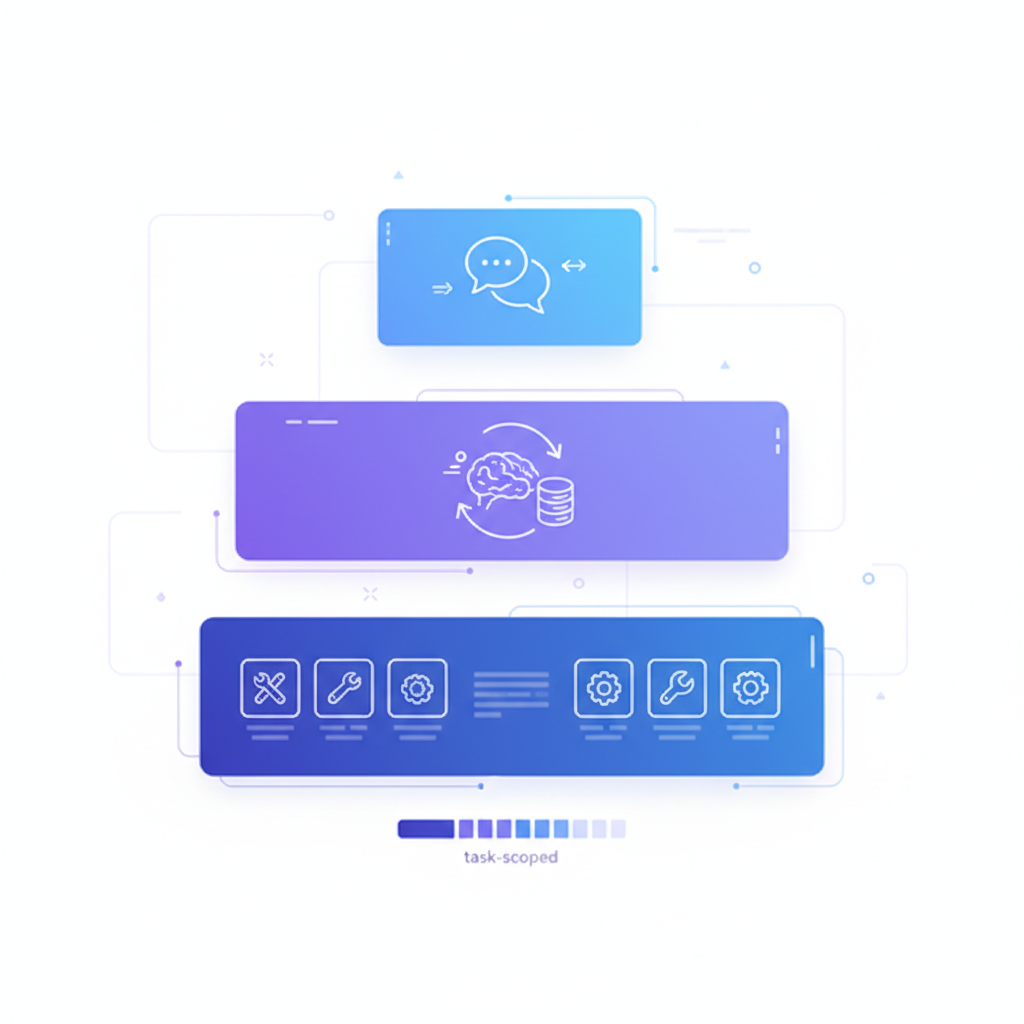
The OpenClaw memory system is organized into three distinct layers, each serving a different purpose and operating on a different time scale.
| Layer | Scope | Lifetime | Storage |
|---|---|---|---|
| Short-term | Single conversation | Session | In-memory + thread DB |
| Long-term | Cross-session | Persistent | ~/.openclaw/memory/ |
| Skill-specific | Per-skill | Persistent | Skill config directory |
These layers interact but remain independent. Short-term memory is always active. Long-term memory is loaded on demand. Skill-specific memory is scoped to the skill that created it.
Understanding this layered architecture is the key to configuring the OpenClaw memory system effectively.
Short-Term Memory: Conversation Context {#short-term}
Short-term memory is the most familiar type. It is the running context of a single conversation — the messages you have sent, the responses the agent has given, the files it has read, and the commands it has executed.
How It Works
When you start a new thread in OpenClaw, a conversation context window is initialized. Every message, tool call, and result is appended to this window. The agent uses this full history to maintain coherence within the session.
The agent remembers that it already read the README and uses that context to inform the update — no re-reading required.
Context Window Limits
Short-term memory is constrained by the LLM's context window. OpenClaw manages this with a sliding window strategy:
- Full context is preserved for recent messages (last ~50 exchanges).
- Summarized context is generated for older messages that would otherwise be truncated.
- Pinned context (system prompts, project config) is always retained at the top of the window.
You can inspect the current context usage with:
This outputs the token count breakdown:
Thread Persistence
Short-term memory is also persisted to a local SQLite database, which means you can resume a conversation after restarting OpenClaw:
The agent reloads the full conversation history and picks up exactly where it left off.
Long-Term Memory: Persistent Knowledge {#long-term}
Long-term memory is what makes OpenClaw truly stand out. It allows the agent to retain knowledge across sessions, projects, and even machine restarts.
The Memory Store
Long-term memories are stored as structured entries in ~/.openclaw/memory/. Each entry contains:
- Content: The actual knowledge (text, key-value pairs, or structured data).
- Tags: Categorization labels for retrieval.
- Source: Where the memory originated (conversation ID, skill name, manual entry).
- Timestamp: When the memory was created or last updated.
- Relevance score: A decay-adjusted weight used during retrieval.
Creating Memories
Memories can be created in three ways:
1. Automatic extraction — OpenClaw identifies important facts during conversations and stores them without explicit instruction:
2. Explicit memory commands — You tell the agent to remember something specific:
3. Skill-generated memories — Skills can write to the memory store when they learn something relevant (more on this below).
Retrieving Memories
When a new conversation starts, OpenClaw performs a contextual memory retrieval step:
- The user's first message is analyzed for topic and intent.
- Relevant long-term memories are fetched using semantic similarity and tag matching.
- Retrieved memories are injected into the system prompt as "recalled context."
Example output:

Memory Decay
Not all memories remain equally relevant forever. OpenClaw applies a time-decay function to memory relevance scores. Memories that have not been accessed or reinforced in a long time gradually receive lower retrieval priority.
This prevents the agent from cluttering its context with outdated information. You can adjust the decay rate in the configuration (covered below).
Skill-Specific Memory {#skill-specific}
Skills — the extensions that give OpenClaw its capabilities — can maintain their own memory stores. This is scoped memory that only the owning skill can read and write.
Why Skill Memory Exists
Consider an email skill that integrates with Inbounter. Over time, this skill learns:
- Which contacts you email most frequently
- Your preferred email signature for different contexts
- Common response patterns for recurring email types
- Thread summaries for ongoing conversations
This knowledge is specific to the email skill and would be noise in the general memory store. Skill-specific memory keeps it isolated and organized.
How It Works
Each skill has a dedicated directory under ~/.openclaw/skills/<skill-name>/memory/:
Skills interact with their memory store through the OpenClaw Skills API:
For details on building custom skills, see How to Build Custom OpenClaw Skills.
How OpenClaw Stores and Retrieves Context {#storage-retrieval}
Under the hood, the OpenClaw memory system uses a combination of SQLite, JSON files, and optional vector embeddings for retrieval.
Storage Architecture
Retrieval Pipeline
When OpenClaw needs to recall context, it follows this pipeline:
- Query construction — The current message and recent context are used to build a retrieval query.
- Tag-based filtering — Memories tagged with the active project or relevant topics are prioritized.
- Semantic search — If embeddings are enabled, vector similarity is used to find related memories.
- Recency weighting — Recent and frequently-accessed memories score higher.
- Token budgeting — Retrieved memories are trimmed to fit within the allocated context budget.
Inspecting Retrieval
You can see exactly what the agent recalled for a given conversation:
This is invaluable for debugging situations where the agent seems to have "forgotten" something. Often the issue is not missing memory but insufficient retrieval budget or mismatched tags.

Memory Configuration {#configuration}
The OpenClaw memory system is highly configurable. All settings live in ~/.openclaw/memory/config.yaml.
Full Configuration Reference
Common Configuration Scenarios
High-volume project work — Increase storage and retrieval limits:
Privacy-sensitive environments — Disable auto-extraction and limit persistence:
Performance-optimized setup — Enable semantic search for faster retrieval on large memory stores:
For a full list of CLI commands, see the OpenClaw CLI Commands Reference.
Email Context and Agent Memory {#email-context}
One of the most powerful applications of the OpenClaw memory system is in email workflows. When your agent processes emails — reading, composing, replying — the context from those interactions feeds directly into its memory.
How Email Context Enriches Memory
When OpenClaw connects to an email provider through a service like Inbounter, the agent gains access to a rich stream of contextual data:
- Contact relationships: Who emails whom, how often, and about what topics.
- Thread continuity: Multi-message threads maintain their full context, so the agent does not lose track of ongoing discussions.
- Tone and style patterns: The agent learns how you communicate with different contacts — formal with clients, casual with teammates.
- Action items: Commitments and deadlines mentioned in emails are extracted and stored as high-priority memories.
Configuration for Email Memory
Example: Email-Aware Agent
This is where memory transforms an agent from a generic text generator into a context-aware assistant that genuinely understands your work. For a deeper look at setting up email automation with OpenClaw, see OpenClaw Automation Prompts.

Best Practices for Memory Management {#best-practices}
After working with hundreds of OpenClaw deployments, these are the patterns that consistently produce the best results.
1. Tag Memories by Project
Always include a project tag when storing memories. This dramatically improves retrieval accuracy when you work across multiple projects.
2. Review and Prune Regularly
Memory stores accumulate noise over time. Schedule a monthly review:
3. Use Explicit Memories for Critical Context
Do not rely solely on auto-extraction for important information. If a piece of context is critical — a security convention, a deployment process, an architectural decision — store it explicitly.
4. Set Appropriate Decay Rates
Different projects need different decay rates:
- Active projects: Longer half-life (90-180 days) to retain recent context.
- Maintenance projects: Shorter half-life (30-60 days) since context changes frequently.
- Reference knowledge: Disable decay for evergreen facts.
5. Monitor Context Usage
Keep an eye on how much of your context window is consumed by recalled memories. If retrieval budget is too high, the agent has less room for the actual conversation. If it is too low, the agent misses important context.
6. Separate Personal and Project Knowledge
Use tags to maintain a clear boundary between personal preferences (global) and project-specific knowledge:

FAQ {#faq}
Can I export my OpenClaw memories?
Yes. The memory store is a standard SQLite database at ~/.openclaw/memory/store.db. You can export it with standard SQLite tools or use the built-in command:
Does the memory system work offline?
Short-term and long-term memory storage and retrieval work fully offline. Semantic search requires an embedding model, which may need an API call — but tag-based and keyword retrieval do not.
How much disk space does the memory system use?
Typically very little. A memory store with 10,000 entries uses roughly 5-15 MB. Vector embeddings add approximately 1.5 KB per entry. Even a heavily-used agent rarely exceeds 100 MB.
Can multiple agents share a memory store?
Not by default. Each OpenClaw installation has its own memory directory. However, you can point multiple instances to a shared store.db by configuring the storage path — just be aware of potential write conflicts.
Is my memory data sent to any external service?
No. All memory data stays local on your machine. The only external calls happen if you enable semantic search with a cloud-based embedding model. You can use a local embedding model to keep everything offline.
How do I reset the memory system entirely?
Conclusion
The OpenClaw memory system is what separates a useful AI agent from a transformative one. By understanding the three layers of memory — short-term conversation context, long-term persistent knowledge, and skill-specific learned patterns — you can configure an agent that genuinely improves over time.
Start with the defaults, tag your memories by project, and enable semantic search once your memory store grows past a few hundred entries. Most importantly, treat your agent's memory as a living resource: review it, prune it, and invest in it the same way you would invest in documentation.
For next steps, check out the OpenClaw Setup Guide to get your agent running, or explore OpenClaw Automation Prompts to put your memory-backed agent to work on real tasks.